Table of Contents
ToggleIf you’re playing Minecraft: Java Edition and your frame rate is struggling, OptiFine is the answer. This lightweight client-side optimization mod transforms your gaming experience by running Minecraft “faster and look[ing] better” without overcomplicating things. Whether you’re playing on a budget PC, a high-end rig, or somewhere in between, OptiFine delivers tangible FPS gains, reduces lag spikes, and unlocks graphics controls that vanilla Minecraft doesn’t offer. It’s become the gold standard for performance tuning in the Java community, and for good reason. Let’s break down what it does, how to set it up, and how to squeeze every frame out of your system.
Key Takeaways
- OptiFine is a client-side optimization mod for Minecraft: Java Edition that overhauls the rendering engine to deliver significant FPS gains and reduce lag spikes without overcomplicating setup.
- OptiFine works by streamlining chunk loading, caching, and draw calls, allowing players to either maximize frame rates by reducing visuals or maintain playable performance while enabling ray-traced shaders and HD textures.
- Installation is straightforward: download the matching OptiFine version from the official site, run the .jar installer, and select the OptiFine profile in your launcher—though compatibility with Forge requires careful version matching.
- Key performance settings to customize include render distance, graphics mode, dynamic lights, animations, and particles, with each adjustment directly impacting your FPS.
- Common issues like crashes or low FPS usually stem from version mismatches, outdated GPU drivers, or conflicting mods, and can be resolved by confirming Minecraft and OptiFine versions match exactly.
- OptiFine is exclusively available for Java Edition and is not supported on Bedrock, console, mobile, or Windows app versions of Minecraft.
What Is Optifine and Why Gamers Need It
OptiFine is a client-side optimization mod exclusive to Minecraft: Java Edition. It works by overhauling Minecraft’s rendering engine, the code that draws every block, texture, and light source on your screen. Instead of the vanilla renderer working overtime on inefficient processes, OptiFine streamlines chunk loading, caching, and draw calls to free up CPU and GPU cycles.
Why does this matter? Minecraft’s base game wasn’t designed with modern graphics hardware in mind. It can be surprisingly inefficient even on powerful machines. OptiFine bridges that gap. Players use it for three main reasons: crushing FPS numbers (especially on lower-end hardware), enabling visual upgrades like shaders and HD textures, or both simultaneously. It’s the first mod most competitive players and performance-conscious gamers install, and it plays nicely with other mods when set up correctly.
How Optifine Improves Minecraft Performance
OptiFine tackles performance from multiple angles. At its core, it implements a more efficient rendering pipeline, meaning fewer redundant draw calls and smarter batch processing of visual elements. Chunk loading is optimized so your game doesn’t stall while new terrain loads in the distance. Memory caching improves texture and model handling, which cuts down stuttering during gameplay.
Beyond rendering, OptiFine gives you granular control over expensive effects. You can disable or tone down animations, particle effects, clouds, shadows, and dynamic lighting, each of which eats GPU power. This flexibility is key: you’re not locked into a “fast” or “fancy” preset. You decide what stays and what goes.
FPS Gains and Graphics Optimization
The FPS boost varies dramatically depending on your hardware and settings. Players on integrated graphics or older GPUs often report significant improvements, sometimes doubling their frame rate. On high-end rigs, the gains are subtler but still real, especially at higher render distances or with visual enhancements enabled.
Here’s the tradeoff: OptiFine lets you either maximize FPS by stripping back visuals, or push visual quality while maintaining playable frame rates. You might enable ray-traced shaders, crank render distance to 32 chunks, and still hit 60+ FPS on mid-range hardware, something vanilla Minecraft simply can’t do. According to guides on optimizing Minecraft for better performance, the combination of OptiFine’s core optimizations plus shader packs delivers the best results for players chasing both performance and eye candy.
Installation and Compatibility Guide
Standard Installation (No Forge)
- Download the matching OptiFine version from the official OptiFine website. Match your Minecraft version exactly (1.20.4, 1.21, etc.).
- Run the .jar installer (you need Java installed).
- Click “Install” to create an OptiFine profile in your Minecraft Launcher.
- Select the OptiFine profile in the launcher and launch the game.
Done. Restart Minecraft and open Video Settings, you’ll see new OptiFine options everywhere.
Installation with Forge
If you’re running other mods via Forge, the process is slightly different:
- Install Minecraft Forge for your version first.
- Download the OptiFine .jar file.
- Place the .jar into your
.minecraft/modsfolder. - Launch Minecraft using the Forge profile.
Important: OptiFine and Forge don’t always play nicely together. Common conflicts include launcher crashes or visual glitches. If you hit snags, check that both Forge and OptiFine are built for the same Minecraft version. Some players report issues on OptiFine and Forge compatibility, especially with certain Forge builds.
Platform note: OptiFine is Java Edition only. Bedrock (console, mobile, Windows 10/11 app) doesn’t support it, those editions use different modding frameworks.
Key Features to Customize for Maximum Performance
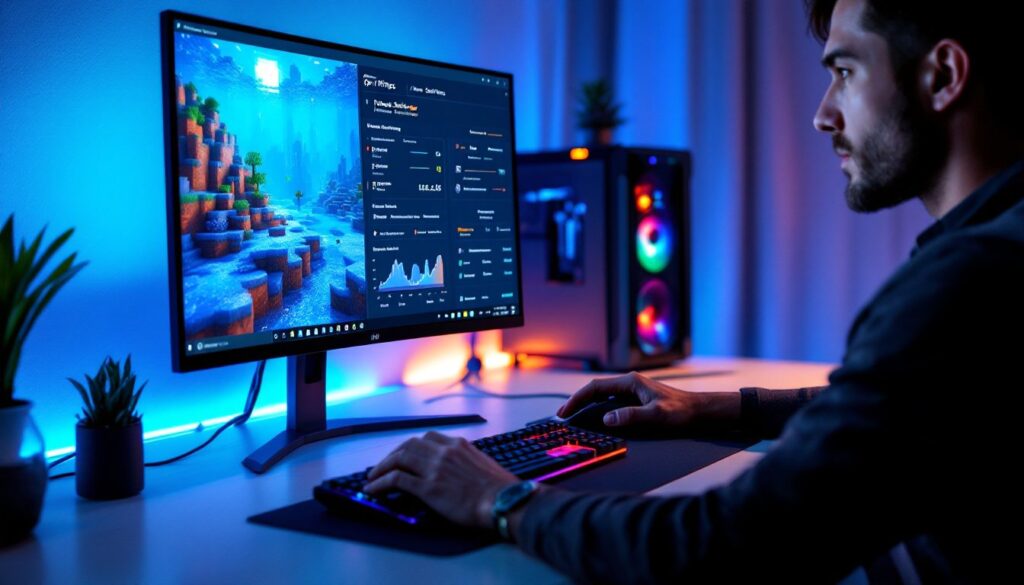
Once OptiFine is installed, jump into Video Settings. Here are the heavy hitters:
- Render Distance & Simulation Distance – Lower values = more FPS. Start at 12 and adjust up as your frame rate allows.
- Graphics Mode – Switch to “Fast” for an immediate boost. “Fancy” looks better but costs FPS.
- Smooth Lighting – Toggle this off if you’re frame-rate hunting: the performance hit is real on older GPUs.
- Dynamic Lights – Set to “Off” or “Fast” instead of “Fancy.” This single setting can net 10+ FPS.
- Animations – Turn off separate toggles for water, lava, fire, and other animated blocks.
- Particles – Reduced level or “minimal” saves frames without breaking gameplay visibility.
- Clouds, Sky, Fog, Shadows – Disable as needed. Shadows look great but demand GPU power.
- Mipmap Levels & Anisotropic Filtering – Advanced texture tweaks. Lowering these helps on budget hardware.
- VSync & FPS Cap – Enable VSync if your monitor supports it (matches refresh rate, reduces tearing). Cap FPS at your monitor’s refresh rate (60, 120, 144, etc.) to avoid wasting power.
Shaders: OptiFine lets you load shader packs for ray tracing and cinematic effects. Enable them in Video Settings under “Shaders.” This burns GPU power, but paired with OptiFine’s optimizations, it’s often feasible on decent hardware. Start with a lightweight shader pack if you’re unsure.
Common Issues and Troubleshooting Tips
OptiFine is stable, but things can go wrong, usually due to version mismatches or mod conflicts.
Crashes or won’t launch:
- Confirm your Minecraft version and OptiFine version match exactly.
- Update your GPU drivers (NVIDIA, AMD, or Intel). Outdated drivers are a common culprit.
- If using Forge, ensure both Forge and OptiFine are compatible for that Minecraft build.
- Reinstall OptiFine from the official site only, fakes exist.
Low FPS even though OptiFine:
- Your video settings are too high. Lower render distance, disable shaders, and toggle off fancy effects.
- Background apps (Discord, OBS, browsers) consume GPU/CPU. Close unnecessary programs.
- Integrated graphics (laptop CPUs) struggle: OptiFine helps, but don’t expect 60 FPS ultra settings.
Visual glitches (flickering, missing textures, broken lighting):
- Reset Video Settings to defaults and gradually retune.
- Disable other mods temporarily to isolate conflicts.
- Clear your shader cache: delete the
shaderpacksfolder and restart.
General rule: If something breaks after installing OptiFine, revert to vanilla Minecraft briefly to confirm OptiFine is the cause. Nine times out of ten, the issue is a version mismatch or a conflicting mod, not OptiFine itself.
Conclusion
OptiFine is a must-have for any Minecraft: Java Edition player serious about performance or visuals. It’s free, officially safe, and the performance gains speak for themselves. Whether you’re running a potato PC or a gaming beast, OptiFine gives you control, optimize for speed, push for beauty, or find your sweet spot in between. Install it, tweak your settings, and enjoy a smoother, faster Minecraft experience in 2026.