Table of Contents
ToggleCurseForge has become the go-to hub for Minecraft modders and players alike, hosting thousands of mods, modpacks, resource packs, and shaders all in one place. Whether you’re looking to transform your world with magic systems, optimize performance, or add jenny mod content for adventure, finding and installing mods through CurseForge streamlines the entire process. The standalone launcher manages version compatibility, handles dependencies automatically, and keeps your modded worlds separate from vanilla gameplay. For gamers serious about customizing their Minecraft experience, understanding CurseForge is essential.
Key Takeaways
- CurseForge Minecraft mod platform centralizes mods, modpacks, resource packs, and shaders while automatically managing version compatibility and dependencies for seamless installation.
- The CurseForge launcher isolates your modded world from vanilla Minecraft, preventing crashes and conflicts while supporting Forge, Fabric, NeoForge, and Quilt loaders.
- Use granular category filters and tags to find the right mods for your playstyle—from performance optimization and tech automation to magic systems and world generation.
- One-click installation through CurseForge eliminates manual folder management, and toggling mods on and off makes troubleshooting mod conflicts quick and straightforward.
- Performance mods like Sodium and proper dependency management are essential for running heavy modpacks smoothly on any hardware, while combining mod categories creates a personalized gameplay experience.
What Is CurseForge and Why It Matters for Minecraft Modding
CurseForge is a massive mod repository and launcher owned by Overwolf that serves the Minecraft community. Unlike scattered mod sites across the web, CurseForge centralizes Minecraft Java Edition, Bedrock Edition mods, modpacks, resource packs, shaders, and custom worlds. The platform automatically manages version compatibility and pulls required dependencies, so you don’t manually hunt for library mods or wrestle with mod loader conflicts.
The CurseForge app solves a critical problem: keeping modded installs completely separate from your vanilla Minecraft installation. This isolation prevents crashes from mod incompatibilities from corrupting your default game. Players working with Forge, Fabric, NeoForge, or Quilt loaders all find their content here. Since its integration into the Overwolf ecosystem, CurseForge has become the standard entry point for anyone serious about we mod setups or exploring Minecraft mobs through custom content.
How to Navigate CurseForge and Find the Right Mods
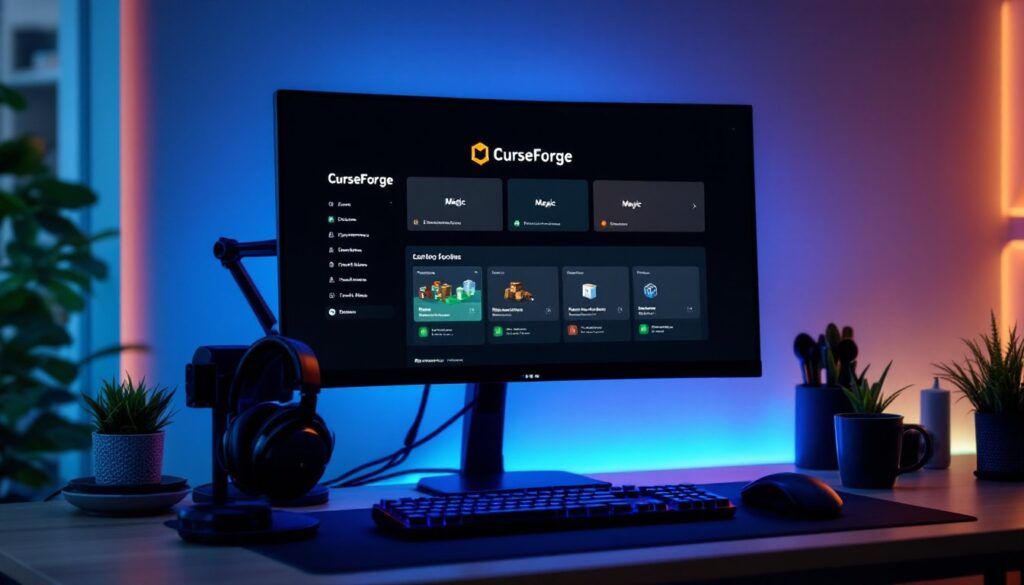
Navigating CurseForge is straightforward once you understand the structure. Launch the app, select “Minecraft,” then choose an existing profile or create a new one tied to a specific Minecraft version and mod loader. From there, click “Add Content” or “Add More Content” to browse mods compatible with your setup.
On the CurseForge website (curseforge.com), the process mirrors the app. Select Minecraft, then filter by game version, mod loader (Forge, Fabric, NeoForge, Quilt), and sort by popularity, last updated, or trending. Each mod page displays compatibility info, download counts, and creator details. The platform shows which versions of Minecraft and loaders each mod supports, eliminating guesswork.
When exploring unfamiliar categories, read mod descriptions carefully. A performance-focused mod might conflict with another optimization tool, while magic mods sometimes require specific dependencies. CurseForge usually auto-installs these dependencies, but it’s worth checking the mod’s page for version-specific notes.
Searching by Category and Tags
Mod categories on CurseForge are granular and helpful. Technology/Tech mods handle automation and machinery, Magic covers spellcasting and enchantment systems, Adventure expands exploration with new dimensions and structures, and Building adds decorative blocks and furniture. Utility/Optimization includes minimaps, waypoint systems, and performance boosters, while Storage mods organize inventory management. Food, QoL (Quality of Life), and World Gen round out the major categories.
Tags narrow results further: search for “performance” to find optimization tools, “minimap” for navigation aids, “biome” for world generation changes, “dimensions” for new realms, “mobs” for creature additions, or “furniture” for cosmetic building blocks. Applying multiple filters ensures you find exactly what suits your playstyle without wading through irrelevant results.
Installation and Setup Made Simple
Installing mods through CurseForge removes most friction. Download the CurseForge app from the official Overwolf website and run the installer. On first launch, select “Minecraft,” then choose “Standard installation” and follow the setup wizard. Create a profile by specifying your desired Minecraft version and mod loader, Forge and Fabric are most common, though NeoForge and Quilt options exist for newer versions.
Once your profile exists, click “Add Content” to browse and one-click install mods. CurseForge automatically manages dependencies: if a mod requires library mods, the launcher pulls those too. No manual folder diving needed. Your modded environment stays isolated from vanilla Minecraft, so switching between modded and vanilla play is instant.
Using the CurseForge Launcher
Profiles appear under “My Modpacks” in the launcher. Hover over any profile and click “Play”, this launches the official Minecraft Launcher with a custom profile pre-selected. Log in with your Microsoft or Mojang account and click “Play” again to start the modded session. The process feels identical to vanilla play, except your world now includes all installed mods.
Managing mods post-installation is equally smooth. Disable mods temporarily by unchecking them in the profile, or delete them entirely. If you encounter crashes, removing recent additions isolates the culprit. Most troubleshooting involves toggling mods on and off to identify conflicts or compatibility issues with your specific Minecraft version.
Top Mod Categories Worth Exploring
Performance mods like Sodium and optimization suites are essential for high-end modpacks or lower-end hardware. These reduce lag, improve frame rates, and sometimes even speed up load times. Pairing performance mods with your modpack significantly improves the experience, especially if you’re running shaders or heavily modded world generation.
World Generation and Biomes mods transform exploration. Mods that expand biome variety, add new terrain types, or introduce floating islands and custom structures make Minecraft feel fresh even after hundreds of hours. These pair well with adventure mods that add dungeons, structures, and loot.
Tech and Automation mods appeal to players who enjoy engineering challenges. Create factories, automate resource gathering, and design intricate redstone-like systems. Many rely on Forge or Fabric loaders and often require specific library mods.
Magic and RPG mods add spell systems, rituals, and progression trees reminiscent of fantasy RPGs. These often include new mobs, bosses, and progression mechanics that extend midgame content.
Utility mods like minimaps, waypoint systems, and inventory sorting quality-of-life improvements without dramatically changing gameplay. Aesthetic mods including shaders, resource packs, and furniture add visual polish and decorative options. Many players combine several categories for a custom experience, perhaps pairing tech mods with building furniture and shaders for a polished, functional world. The Minecraft Mods List at GATE 37 highlights combinations that work well together.
Troubleshooting Common Issues
Games crashing on startup usually indicate a mod loader or version mismatch. Verify that all installed mods support your Minecraft version and loader. If you recently added mods, remove them one by one and test each removal. CurseForge profiles let you toggle mods without deleting them, making diagnosis easier.
Mod conflicts happen when two mods modify the same game systems. Disable suspect mods in the profile settings or delete them from the mods folder entirely. Check the mod’s page for known incompatibilities, most creators document conflicts with other popular mods.
Missing dependencies cause crashes with cryptic error messages. CurseForge usually installs required libraries automatically, but if errors persist, visit the problematic mod’s page and manually install listed dependencies. Ensure each dependency matches your Minecraft version and loader.
Performance issues stem from heavy mods or insufficient system specs. Reduce shader settings, remove resource-intensive mods (large mods that add many entities or terrain features), or install performance-optimized mods like Sodium or Lithium. A few well-chosen optimization tools often restore playable frame rates even on modest hardware.
For deeper modding knowledge, consult resources like HowToGeek’s guide to installing Minecraft mods or browse Nexus Mods’ top Minecraft offerings for alternative perspectives. If you’re interested in specific mod types like jenny mod gameplay mechanics, check the jenny mod gameplay guide for detailed setup. Stay informed about platform security by reviewing recent CurseForge credential exposure incidents to ensure your account remains safe.
CurseForge occasionally has hiccups, mods failing to download or launcher crashes. Clearing your launcher cache or reinstalling the app usually resolves these. Keep your launcher updated to the latest version for best compatibility and stability.