Table of Contents
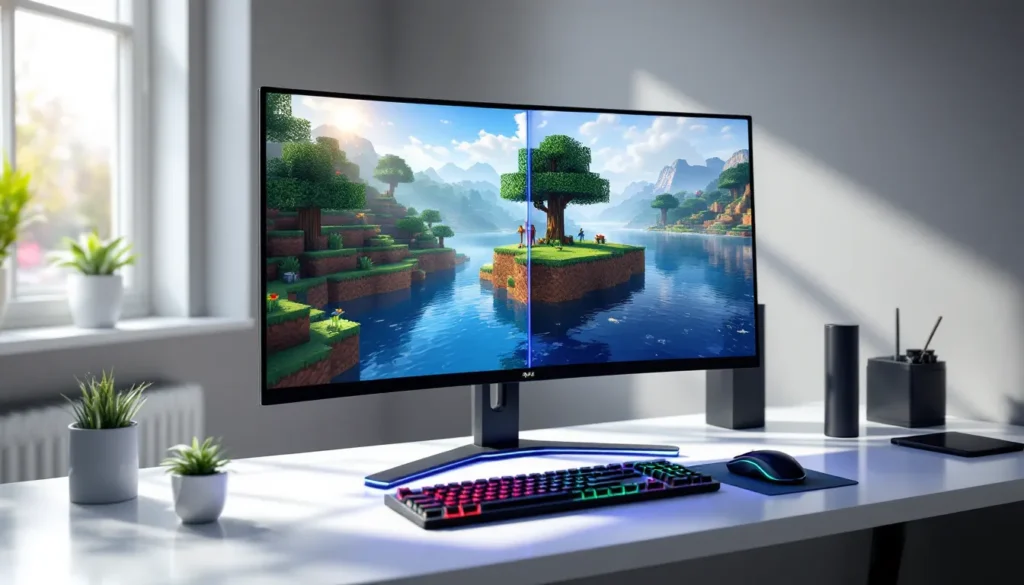
ToggleVanilla Minecraft Bedrock Edition looks clean, but let’s be honest, it’s starting to show its age. If you’ve watched any gameplay footage with shaders and wondered how they achieved those god-ray sunsets and photorealistic water reflections, you’re not alone. Shaders can turn your blocky world into something approaching AAA visual fidelity, and the best part? Bedrock supports them natively without third-party loaders.
But there’s a catch. Unlike Java Edition’s well-documented shader ecosystem, Bedrock’s shader scene operates differently, with unique file formats, installation methods, and performance quirks depending on whether you’re playing on a flagship gaming PC or a four-year-old Android tablet. This guide cuts through the confusion and walks through everything from installation across every platform to the best shader packs optimized for 2026’s Minecraft Bedrock Edition (version 1.21.x and beyond).
Key Takeaways
- Minecraft Bedrock shaders work natively through the Render Dragon engine and are installed as .mcpack files, making them easier to implement than Java Edition’s external mod loaders.
- Performance varies significantly across devices—high-end PCs can handle premium shaders like Harmony Voxel at 60+ FPS, while mobile users should stick with lightweight options like ESBE 2G to maintain playability.
- Installation steps differ by platform: Windows users can double-click .mcpack files, mobile devices auto-import through file managers, and console players must use workarounds like cloud saves since shaders aren’t officially supported.
- Top shader packs for 2026 include ESBE 2G for low-end devices, BICUBIC for balanced performance, Newb X Legacy for atmospheric lighting, and Harmony Voxel for high-end visual fidelity.
- Pairing Minecraft Bedrock shaders with PBR texture packs maximizes visual impact, as material definitions allow surfaces to reflect light realistically—texture packs should be loaded before shaders in your resource pack list.
- Optimize shader performance by adjusting render distance to 12–16 chunks, keeping simulation distance at 4–6 chunks, and downloading only from trusted sources like MCPEDL, Planet Minecraft, and official Discord communities.
What Are Shaders in Minecraft Bedrock Edition?
Shaders are essentially graphics overhaul packs that modify how light, shadows, water, and atmospheric effects render in Minecraft. They replace the default rendering engine’s calculations with custom algorithms that produce more realistic or stylized visuals, think dynamic shadows that shift with the sun’s position, water that actually reflects your builds, and volumetric fog rolling through forests.
In Bedrock Edition, shaders work through the game’s Render Dragon engine, introduced in version 1.16.200. This is fundamentally different from Java Edition’s approach, which relies on external mods like OptiFine or Iris. Render Dragon processes shaders as .mcpack files that plug directly into the game’s material rendering system, no mod loader required.
Understanding the Difference Between Bedrock and Java Shaders
Bedrock and Java shaders aren’t interchangeable. Java shaders use GLSL (OpenGL Shading Language) and typically come as .zip files compatible with OptiFine or Sodium+Iris. Bedrock shaders, on the other hand, are built using a different material format tied to Render Dragon’s DirectX/Metal/Vulkan backend depending on your platform.
This means a popular Java shader like BSL or Complementary won’t work on Bedrock without a complete ground-up recreation. The Bedrock shader community is smaller but growing fast, with developers reverse-engineering material definitions and sharing their findings on modding forums like Nexus Mods and dedicated Discord servers.
Performance characteristics differ too. Bedrock generally runs lighter than Java due to being coded in C++, but Render Dragon shaders can still tank framerates on lower-end hardware because they override core rendering passes. The key takeaway: Bedrock shaders offer native integration and better mobile compatibility, but the selection is more limited compared to Java’s massive library.
Why Use Shaders on Bedrock Edition?
If you’ve been playing Bedrock without shaders, you’re missing out on some genuinely transformative visual upgrades. But shaders aren’t just about making screenshots look better, they change how you experience the game’s atmosphere and can even affect gameplay perception.
Enhanced Visual Quality and Realism
The most obvious benefit is visual fidelity. Modern Bedrock shaders add:
- Dynamic lighting and shadows: Watch shadows shift realistically as the sun arcs across the sky, with torches casting proper light cones instead of flat illumination zones.
- PBR (Physically-Based Rendering) support: Materials like iron blocks, water, and glass reflect light accurately, creating depth and believability.
- Atmospheric effects: Volumetric clouds, godrays piercing through tree canopies, and horizon fog that adds scale to distant mountains.
- Water overhauls: Reflections, refraction, and wave animations that make oceans feel alive rather than textured blue blocks.
These improvements make exploration more immersive. That cave system you’ve passed a hundred times suddenly feels mysterious with proper shadow gradients. Your mega-build looks legitimately impressive with sunset reflections bouncing off glass towers.
Performance Considerations Across Devices
Bedrock Edition runs on everything from RTX 4090-equipped desktops to iPhone 12s to Nintendo Switch. Shader performance scales accordingly, and this cross-platform reality shapes the entire Bedrock shader ecosystem.
On high-end PC hardware (RTX 3060 or better, Ryzen 5 5600X equivalent or higher), you can push premium shaders at 60+ FPS even at 1440p. Mid-range setups (GTX 1660, older Ryzen 3000-series) will need to dial back shader complexity or resolution scaling. Mobile devices are the wild card, flagship phones from 2024-2025 (Snapdragon 8 Gen 3, Apple A17 Pro) handle lightweight shaders surprisingly well at 30-40 FPS, but anything older struggles.
Consoles present unique constraints. Xbox Series X/S and PS5 can technically run shaders, but installation requires workarounds since Sony and Microsoft don’t officially support file-level mod access in their ecosystems. Performance analysis from DSOGaming shows Series S users should stick to optimized lightweight packs to maintain 60 FPS, while Series X can handle more intensive options.
How to Install Shaders on Minecraft Bedrock
Installing shaders on Bedrock varies significantly by platform. Unlike Java’s relatively standardized process, you’ll follow different steps depending on whether you’re on Windows, mobile, or console.
Step-by-Step Installation for Windows 10/11
Windows users have the most straightforward experience:
- Download your chosen shader pack as a
.mcpackor.zipfile from a trusted source (more on this later). - If it’s a
.zipfile, rename the extension to.mcpack. - Double-click the
.mcpackfile. Minecraft Bedrock should auto-launch and import the shader into your resource packs folder. - Open Minecraft and navigate to Settings > Global Resources.
- Activate the shader by selecting it from the available packs list and moving it to the active column.
- Back out and load a world. The shader will apply automatically.
If double-clicking doesn’t work, manually copy the shader folder to: C:Users[YourUsername]AppDataLocalPackagesMicrosoft.MinecraftUWP_8wekyb3d8bbweLocalStategamescom.mojangresource_packs
Windows 11 users on version 23H2 or later might encounter SmartScreen warnings, click “More info” and “Run anyway” if you trust the source.
Installing Shaders on Mobile Devices (iOS and Android)
Android installation:
- Download the
.mcpackfile using your mobile browser (Chrome, Firefox, etc.). - Open your file manager and navigate to Downloads.
- Tap the
.mcpackfile. Android will prompt “Open with Minecraft.” - Minecraft imports the shader automatically.
- Go to Settings > Global Resources and activate it.
iOS installation:
- Download the shader file (Safari works best).
- Tap the downloaded file in the Downloads section.
- iOS will show a share menu, select “Copy to Minecraft.”
- Launch Minecraft, navigate to Settings > Global Resources, and enable the imported shader.
Some Android devices running custom ROMs or older OS versions (Android 9 or earlier) may require a file manager app like ES File Explorer to locate and execute .mcpack files properly.
Console Installation: Xbox and PlayStation
This is where things get complicated. Neither Xbox nor PlayStation officially supports custom file imports for Minecraft Bedrock. But, there are workarounds:
Xbox method (requires Windows 10/11 PC):
- Install Minecraft Bedrock on your Windows PC using the same Microsoft account as your Xbox.
- Import the shader on PC following the Windows installation steps above.
- Create a world with the shader enabled and ensure it syncs to Xbox Live cloud saves.
- On your Xbox, load Minecraft and download the synced world from cloud storage.
- The shader should remain active in that specific world.
PlayStation method:
PS4 and PS5 have more restricted file systems. The most reliable method involves using a realm:
- Set up a Minecraft Realm (requires subscription).
- Upload a shader-enabled world from a PC or mobile device.
- Join the realm from your PlayStation.
Both console methods are clunky and not officially supported. Performance on base Xbox One and PS4 is rough even with lightweight shaders, Series X/S and PS5 are highly recommended if you’re serious about modded visuals.
Best Minecraft Bedrock Shaders in 2026
The Bedrock shader scene has matured significantly over the past two years. These packs represent the current meta across different performance tiers and visual preferences.
ESBE 2G Shader: Best for Low-End Devices
ESBE 2G has been the go-to lightweight option since 2021, and the 2026 updates (version 4.1.x) continue that legacy. It adds subtle enhancements without destroying framerates on older hardware:
- Soft shadows with minimal performance hit
- Gentle water ripple effects
- Improved sky gradients during sunrise/sunset
- Torch flicker animations
Performance: Expect 50-60 FPS on devices like iPhone 11, Galaxy S10, or GTX 1050 Ti at 1080p. It’s the safest choice for mobile players or anyone running Bedrock on integrated graphics.
Best for: Casual players, survival servers, or anyone prioritizing stability over visual flex.
BICUBIC Shaders: Balanced Performance and Quality
BICUBIC Shaders (current version: 15.0 as of March 2026) strike an excellent middle ground. They deliver noticeably upgraded visuals without requiring flagship hardware:
- Realistic water reflections with depth-based color shifts
- Proper shadow mapping for entities and terrain
- PBR material support (requires compatible texture packs)
- Customizable settings for performance tuning
The shader pack includes three presets: Lite, Standard, and Enhanced. Standard is the sweet spot for most players.
Performance: 45-60 FPS on mid-range hardware (RTX 2060, Ryzen 5 3600, iPhone 14). Mobile users should stick with the Lite preset.
Best for: Players wanting a significant visual upgrade without losing competitive framerates. Works great for Minecraft engineering projects where you want your redstone contraptions to look as good as they function.
Newb X Legacy: Realistic Lighting for Mid-Range Systems
Newb X Legacy is a community favorite that pushes realism while remaining surprisingly optimized. The latest builds (version 16.2) include:
- Advanced lighting algorithms with color bleed from light sources
- Volumetric fog and atmospheric scattering
- Detailed cloud rendering with weather effects
- Screen-space reflections on wet surfaces
The shader excels at creating mood. Caves feel genuinely dark and dangerous. Forests have dappled sunlight filtering through leaves. Night gameplay becomes atmospheric rather than just annoying.
Performance: 40-55 FPS on GTX 1660 Ti / RTX 3050, Ryzen 5 5600. Not recommended for mobile unless you have a 2025+ flagship phone.
Best for: Survival players and content creators who prioritize atmosphere. According to walkthroughs on IGN, this shader pack pairs exceptionally well with horror maps and adventure worlds.
Harmony Voxel: Premium Visuals for High-End Hardware
Harmony Voxel is the current visual king of Bedrock shaders. If you have the hardware, this is the shader pack that makes your friends ask “wait, that’s Minecraft?” Key features:
- Path-traced lighting approximation (not true RTX, but close)
- Photorealistic water with caustics
- Advanced bloom and lens effects
- Weather particle interactions with lighting
- Support for high-resolution PBR texture packs (512x and up)
Performance: You need serious hardware. RTX 3070 minimum for 1080p60. RTX 4070 or better for 1440p60. Forget about mobile.
Best for: Screenshot enthusiasts, builders showcasing mega-projects, and anyone with a high-end rig who wants to push Bedrock’s visual ceiling. Popular with the creative community for portfolio pieces and cinematic world tours.
Optimizing Shader Performance on Bedrock
Even the best shader loses its appeal when you’re stuck at 20 FPS with constant stuttering. Proper optimization makes the difference between cinematic gameplay and a slideshow.
Adjusting In-Game Graphics Settings
Before blaming the shader, tune Bedrock’s built-in graphics settings:
- Render Distance: Drop this to 12-16 chunks with shaders active. Going beyond 20 chunks murders performance for marginal visual gain.
- Simulation Distance: Keep this at 4-6 chunks. Higher values increase CPU load, which compounds shader overhead.
- Graphics Mode: Set to “Fancy” for full shader effects. “Fast” disables some shader features.
- VSync: Turn this off if you’re getting input lag. Cap framerates manually through your GPU control panel instead.
- GUI Scale: Doesn’t affect shader performance, but a smaller UI reduces pixel fill overhead on lower-end GPUs.
Some shaders include configuration files (typically a .json in the shader folder) where you can disable specific effects like godrays or water reflections. Check the shader’s documentation or Discord community for configuration guidance.
Choosing the Right Shader for Your Device
Match shader complexity to your hardware realistically:
For mobile devices: Stick with ESBE 2G or the Lite preset of BICUBIC. Disable PBR texture packs, they require GPU memory most phones don’t have to spare.
For budget PC (integrated graphics, GTX 1050 equivalent): BICUBIC Lite or ESBE 2G. Drop render distance to 10-12 chunks.
For mid-range PC (GTX 1660, RTX 2060, RX 5600 XT): BICUBIC Standard or Newb X Legacy. Render distance 14-16 chunks at 1080p.
For high-end PC (RTX 3070+, RX 6800+): Harmony Voxel or Newb X Legacy with settings maxed. You can push 1440p with 16-20 chunk render distance.
Console players on Series S should treat it like mid-range PC hardware. PS5 and Series X can handle higher-tier shaders but may need render distance adjustments to maintain 60 FPS.
Troubleshooting Common Shader Issues
Even with correct installation, shaders sometimes misbehave. Here’s how to fix the most common problems.
Shaders Not Showing or Activating
If you’ve installed a shader but see no visual changes:
- Check Global Resources: Go to Settings > Global Resources and verify the shader is in the “Active” column, not just “Available.”
- World-specific resource packs: Some worlds have locked resource pack settings. Create a new world to test if the shader works there.
- File corruption: Re-download the shader. Corrupted
.mcpackfiles import without errors but don’t apply effects. - Render Dragon compatibility: Very old shaders (pre-2022) may not work with current Render Dragon implementations. Check the shader’s last update date.
Windows users can manually verify installation by checking if files exist in the resource packs folder mentioned earlier. If the folder is empty or contains incomplete files, the import failed.
Performance Drops and Lag Fixes
Sudden FPS drops or stuttering:
- Close background applications: Browsers, Discord, and streaming software compete for GPU resources.
- Update graphics drivers: AMD and NVIDIA release game-specific optimizations. Outdated drivers cause shader instability.
- Allocate more RAM (Windows only): Bedrock typically manages memory automatically, but you can force Windows to prioritize it via Task Manager > Details > Right-click Minecraft > Set priority > High.
- Check thermals: Shaders push GPUs hard. If your device is thermal throttling, performance tanks. Ensure proper ventilation or consider undervolting your GPU.
Mobile players experiencing battery drain should lower brightness and close other apps. iOS users on older devices (iPhone X or earlier) should stick to ESBE 2G and accept that 30 FPS is the realistic ceiling.
Compatibility Problems with Resource Packs
Shaders and texture packs sometimes conflict, especially with PBR materials:
- Load order matters: In Global Resources, place the shader below your texture pack in the active column. The game reads bottom-to-top, so shaders need to process after textures.
- PBR requirements: High-end shaders expect PBR material definitions. Using a non-PBR texture pack with a PBR shader causes flat-looking blocks. Either use PBR-compatible textures or switch to a shader without PBR requirements.
- Conflicting material definitions: Some texture packs override the same material files shaders modify. Check both pack descriptions for known conflicts.
If you’re running multiple resource packs (shaders + textures + UI mods), test them individually to isolate which combination causes issues.
Where to Download Safe and Updated Shaders
Downloading from sketchy sites is how you end up with malware disguised as a shader pack. Stick to these trusted sources:
MCPEDL (Minecraft Pocket Edition Downloads): The most established Bedrock modding site. All uploads are vetted, and the comment sections flag broken or outdated packs quickly.
Planet Minecraft: Hosts both Java and Bedrock content. Filter by “Bedrock Edition” and check upload dates, anything older than 12 months may have compatibility issues with current Render Dragon builds.
GitHub repositories: Many shader developers host their work directly on GitHub with open-source code. This is the safest option but requires slightly more technical knowledge to navigate releases.
Official creator Discord servers: Top shader developers maintain Discord communities where they share beta builds and provide support. Join servers for packs like BICUBIC or Newb X Legacy for direct access to the latest versions.
Avoid: Random Reddit file-sharing links, YouTube description “mirror” links, and any site plastered with clickbait ads promising “Minecraft RTX free download.” If a site requires you to complete surveys or disable your ad blocker, close it immediately.
Always scan downloaded files with Windows Defender or your mobile security app before opening, even from trusted sources. While rare, compromised uploads do happen.
Combining Shaders with Texture Packs for Maximum Impact
Shaders transform lighting and atmospheric effects, but they’re even better paired with high-quality texture packs. The right combination elevates visuals from “nice” to “wait, this runs on my phone?”
PBR texture packs are designed specifically for shader use. They include material maps that define how surfaces interact with light, metallic reflection on iron blocks, rough matte finish on stone, translucent depth for glass. Popular PBR packs compatible with Bedrock shaders include:
- Defined PBR (32x, 64x, 128x variants)
- Vanilla PBR (keeps default textures but adds material definitions)
- UltraPBR (high-resolution pack requiring strong hardware)
For best results, match texture resolution to your device capability. Mobile users should stick with 32x or vanilla. Mid-range PCs handle 64x-128x fine. High-end rigs can push 256x-512x with Harmony Voxel or similar premium shaders.
Load order tip: Always activate texture packs before shaders in your resource pack list. The shader reads material definitions from the texture pack and applies its lighting algorithms accordingly. Reverse order causes the shader to apply default material properties, wasting the PBR pack’s potential.
Non-PBR texture packs (like Faithful or Medieval-themed packs) still work with shaders but won’t benefit from advanced material rendering. You’ll get improved lighting but not the full photorealistic effect.
Experiment with combinations. A medieval texture pack with Newb X Legacy creates a moody, atmospheric survival experience. Defined PBR with Harmony Voxel looks like a completely different game. Save different resource pack configurations for different worlds, creative builds might want maximum visual fidelity, while survival servers need performance optimization.
Conclusion
Minecraft Bedrock shaders have come a long way from the janky early Render Dragon experiments. In 2026, you’ve got legitimate options across every performance tier, from mobile-friendly packs that barely touch framerates to desktop powerhouses that rival modded Java Edition’s visual ceiling.
The key is matching shader complexity to your hardware and understanding that Bedrock’s cross-platform nature means the experience varies wildly between devices. A shader that runs flawlessly on your gaming PC might be unplayable on the Switch version of the same world. Test, adjust settings, and don’t be afraid to mix and match until you find your perfect balance between visual quality and performance.
With the resources and installation guides in this text, you’ve got everything needed to transform vanilla Bedrock into something that actually looks like it was released this decade. Now go make those builds look as impressive as they deserve to be.