Table of Contents
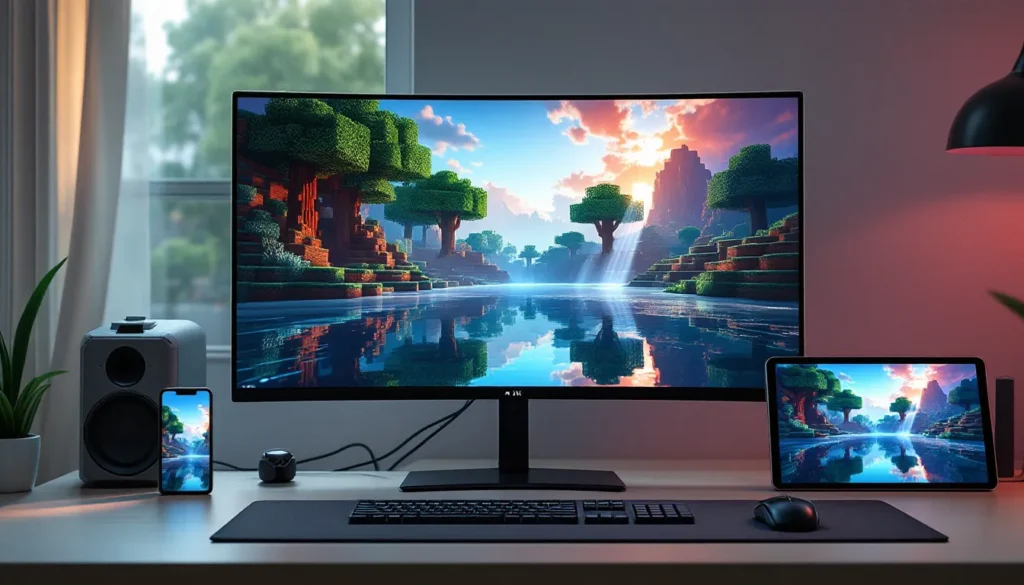
ToggleMinecraft Bedrock Edition might not have the shader support that Java players take for granted, but that doesn’t mean you’re stuck with vanilla lighting. The modding scene has evolved dramatically, and 2026 brings more shader packs than ever, optimized specifically for Bedrock’s unique rendering engine. Whether you’re building on a flagship phone, a budget tablet, or a next-gen console, there’s a shader that can transform your world without destroying your frame rate.
This guide covers everything: what shaders actually do under Bedrock’s hood, how they differ from Java’s offerings, installation across every platform, and the best packs available right now. If you’ve ever watched a Java shader showcase and wished Bedrock could look half that good, you’re in the right place.
Key Takeaways
- Shaders for Minecraft Bedrock enhance visuals through the Render Dragon engine, adding dynamic shadows, realistic water reflections, and atmospheric effects without requiring Java’s third-party mods.
- ESBE 2G offers the best performance for budget devices, while Newb X Legacy provides balanced visuals for mid-range hardware, and AziFy Natural delivers photorealistic results for flagship devices.
- Installation is platform-specific but straightforward: download .mcpack files and activate through Settings > Global Resources on Windows, mobile, Xbox, or PlayStation.
- Optimize shader performance by reducing render distance to 12-16 chunks, disabling VSync, and switching graphics to Fast mode—tactics that can recover 10-20fps without major visual compromise.
- Shader compatibility issues arise when layering multiple resource packs; keep shaders at the top of your active packs list and test PBR texture packs only with compatible shaders like Newb X Legacy.
What Are Shaders in Minecraft Bedrock?
Shaders in Minecraft Bedrock are specialized resource packs that manipulate how the game renders light, shadows, water, and atmospheric effects. Unlike texture packs that swap out block appearances, shaders rewrite the visual pipeline, adding real-time reflections, volumetric lighting, dynamic shadows, and weather effects that vanilla Minecraft doesn’t support.
Bedrock shaders leverage the Render Dragon engine, which Mojang introduced in late 2020 and has been refining ever since. Render Dragon uses a deferred rendering approach, which is fundamentally different from the immediate-mode rendering Java Edition relies on. This means shaders need to be built specifically for Bedrock: you can’t just port a Java shader and expect it to work.
When you install a shader pack, you’re essentially giving the game new instructions for calculating lighting per-pixel rather than per-block. The result? Sunlight that actually bleeds through leaves, water that reflects the sky above it, and shadows that shift as clouds pass overhead.
How Shaders Differ Between Bedrock and Java Edition
Java Edition shaders use OptiFine or Iris as middleware, giving shader developers near-total control over the rendering pipeline. That’s why Java packs like SEUS PTGI or Complementary can pull off path-tracing and screen-space reflections, they’re working with a flexible, open framework.
Bedrock shaders, by contrast, work within the constraints of Render Dragon. They can’t access the same depth of rendering hooks, which is why you won’t see true path-tracing on Bedrock (yet). But there are upsides: Render Dragon is more efficient on lower-end hardware, and shader packs are easier to install, no third-party loaders required.
Another key difference is cross-platform compatibility. A single Bedrock shader can run on Windows, Xbox, PlayStation, iOS, and Android without modification, assuming the device meets the performance threshold. Java shaders are PC-locked unless you’re running Java on a very particular setup.
Finally, Bedrock shaders integrate directly into the game’s resource pack system. That means updates and compatibility are generally smoother, though it also means fewer experimental features compared to Java’s Wild West modding scene.
Why Use Shaders on Bedrock Edition?
Vanilla Bedrock looks clean, but it’s flat. Lighting is functional, water is opaque, and the atmosphere is… well, there isn’t much of one. Shaders fix that without requiring you to learn command blocks or jump into add-on development.
Enhanced Lighting and Shadows
Dynamic shadows are the most immediate upgrade. Vanilla Bedrock applies basic ambient occlusion, but shaders calculate shadows in real time based on the sun’s position. Trees cast shadows that move across the ground. Torches create flickering light pools. Even your character model can cast a shadow if the shader supports entity rendering.
Some shader packs add bloom and HDR tonemapping, which makes bright light sources (like lava or glowstone) glow realistically instead of just being a flat bright texture. The difference is especially noticeable at sunrise and sunset, when the low-angle light creates long, dramatic shadows across your builds.
Realistic Water and Weather Effects
Shaders transform water from a flat blue texture into something you’d actually want to build near. Reflections are the big one, most mid-to-high-end shaders reflect the sky, nearby blocks, and even entities on the water’s surface. Some packs also add refraction, so underwater objects appear distorted when viewed from above.
Weather gets an upgrade too. Rain isn’t just white lines falling, it creates puddles, adds a haze to distant terrain, and darkens the sky in a way that actually feels stormy. Snow accumulation, fog layers, and even aurora effects are common in more ambitious packs.
Improved Atmosphere and Immersion
Shaders sell the illusion that Minecraft is a place, not just a game. Volumetric fog makes caves feel oppressive and forests feel dense. God rays (crepuscular rays) stream through gaps in the canopy. The horizon fades into atmospheric haze instead of an abrupt render-distance cutoff.
These touches don’t change gameplay, but they make exploration feel meaningful. A mountain range at sunset with a good shader pack running? That’s screenshot material.
How to Install Shaders on Minecraft Bedrock
Installation varies by platform, but Bedrock’s unified resource pack system keeps the process relatively painless. No third-party loaders, no manual file editing, just download and activate.
Installing Shaders on Windows 10/11
- Download the shader pack. Most Bedrock shaders come as
.mcpackfiles, which are self-installing. You can find them on MCPEDL, the official Minecraft Marketplace, or community sites. - Double-click the
.mcpackfile. Windows should automatically open Minecraft and import the shader into your resource packs folder. If not, manually place the file inC:Users[YourName]AppDataLocalPackagesMicrosoft.MinecraftUWP_8wekyb3d8bbweLocalStategamescom.mojangresource_packs. - Launch Minecraft Bedrock and open Settings > Global Resources.
- Find your shader in the “My Packs” list and tap the + icon to activate it. Move it to the top of the active packs list if you’re layering multiple resource packs.
- Close settings and load a world. The shader should take effect immediately.
If you’re using the Minecraft Launcher (not the Microsoft Store version), the process is identical, just make sure you’re launching Bedrock, not Java Edition.
Installing Shaders on Mobile Devices (iOS and Android)
Android:
- Download the shader
.mcpackfrom your browser or a file manager app. - Tap the file. Android will prompt you to open it with Minecraft.
- Minecraft imports the pack automatically. Go to Settings > Global Resources, activate the shader, and you’re done.
iOS:
- Download the
.mcpackvia Safari or Files app. - Tap the file and select Open in Minecraft.
- If iOS doesn’t recognize the file type, rename it to
.zip, extract it, then re-compress the folder as.mcpack. - Import via Settings > Global Resources.
Mobile performance varies wildly depending on your device. A 2024+ flagship (Snapdragon 8 Gen 3, A17 Pro, or newer) can handle mid-tier shaders at 60fps. Older devices should stick to lightweight packs like Bicubic or ESBE 2G.
Installing Shaders on Xbox and PlayStation
Console installation is the simplest but also the most limited.
- **Xbox Series X
|
S and PS5**: Download shaders directly from the Minecraft Marketplace. Free and paid packs are available, though the selection is smaller than on PC or mobile. Once purchased/downloaded, they auto-install.
- Manual installation (Xbox only): If you own a shader
.mcpackon your PC, you can transfer it via the Xbox app or a USB drive. Place it in the Minecraft resource packs folder, then activate in-game.
PlayStation doesn’t support manual .mcpack imports due to Sony’s closed ecosystem. You’re limited to Marketplace offerings unless you’re on a jailbroken console (which violates ToS).
Both Xbox Series X
|
S and PS5 handle shaders well at 1080p/60fps. Last-gen consoles (Xbox One, PS4) struggle with anything beyond ultra-lightweight shaders.
Best Shaders for Minecraft Bedrock in 2026
The Bedrock shader scene has matured significantly. Here are the top picks for different use cases, all tested as of March 2026.
ESBE 2G Shader – Best for Performance
ESBE 2G has been the go-to lightweight shader since 2020, and the 2026 version (v3.8) continues that legacy. It adds subtle shadows, improved water reflections, and warmer lighting without crushing frame rates on mid-range devices.
Key Features:
- Dynamic shadows with minimal performance hit
- Reflective water surfaces
- Enhanced sunrise/sunset colors
- Compatible with render distances up to 24 chunks
Performance: Expect 50-60fps on a Snapdragon 778G or equivalent. Even budget devices (Snapdragon 695, MediaTek Dimensity 700) can maintain 30-40fps.
Best For: Players on older phones, tablets, or last-gen consoles who want a visual upgrade without tanking performance. Many guides on shader optimization recommend ESBE 2G as the baseline for Bedrock.
Newb X Legacy – Best Balanced Option
Newb X Legacy (v16 as of 2026) strikes the best balance between visual fidelity and performance. It’s more ambitious than ESBE 2G, adding volumetric fog, better shadow softness, and Screen Space Reflections (SSR), but still runs smoothly on mid-tier hardware.
Key Features:
- Volumetric lighting and fog
- SSR for water and wet surfaces
- Customizable settings via in-pack config (clouds, waving plants, shadow distance)
- Support for PBR (Physically Based Rendering) texture packs
Performance: Flagship phones (2023+), PS5, Xbox Series X
|
S, and decent gaming PCs handle it at 60fps. Mid-range devices can hit 40-50fps with tweaked settings.
Best For: Players who want a noticeable visual upgrade without needing top-tier hardware. It’s the Goldilocks shader, not too light, not too heavy.
AziFy Natural – Best for Realism
AziFy Natural (v2.4) is the most visually impressive shader pack available for Bedrock in 2026. It leans into realism: cinematic tonemapping, highly detailed water, atmospheric scattering, and shadows so crisp they rival Java’s SEUS.
Key Features:
- Photorealistic water with accurate reflections and caustics
- Advanced atmospheric effects (god rays, fog layers, haze)
- Enhanced color grading for a filmic look
- Full PBR support for compatible texture packs
Performance: This is a high-end shader. You need a Snapdragon 8 Gen 3, A17 Pro, or better on mobile. On PC, expect 50-60fps with a GTX 1660 or RTX 3050 at 1080p. Consoles (Series X, PS5) can manage 1080p/50fps but may drop in dense biomes.
Best For: Screenshot hunters and players with flagship devices who want Bedrock to look as close to modded Java as possible.
Bicubic Shaders – Best for Low-End Devices
Bicubic Shaders (v1.9.5) is the most optimized pack for underpowered hardware. It’s essentially a shader-lite: improved lighting and basic water reflections, but no shadows or fog. If your device struggles with vanilla Bedrock, this is your only realistic option.
Key Features:
- Smoothed lighting transitions
- Subtle water reflections (non-SSR)
- Near-zero performance impact
- Works on devices with 2GB RAM or less
Performance: Runs at 60fps on nearly anything, including older Android phones (Snapdragon 600-series), low-end tablets, and even Switch (via Android ports, unofficially).
Best For: Budget devices, older hardware, or players who prioritize performance over visuals but still want a slight upgrade from vanilla.
Optimizing Performance When Using Shaders
Shaders are demanding, but smart settings tweaks can claw back 10-20fps without sacrificing much visual quality.
Adjusting Video Settings for Better FPS
Start with these in-game settings:
- Render Distance: Drop to 12-16 chunks. Shaders recalculate lighting per chunk, so lower render distance = fewer calculations.
- Simulation Distance: Set to 4-6 chunks. This controls mob spawning and redstone, not visuals.
- Graphics: Switch to Fast instead of Fancy. Fast disables leaf transparency and cloud detail, freeing up GPU overhead.
- VSync: Turn it off. VSync caps frame rate and adds input lag. If you’re getting screen tearing, cap FPS manually instead (60 or 120, depending on your display).
- UI Profile: Use Pocket instead of Classic if you’re on PC. It’s less GPU-intensive.
For mobile players, enable Battery Saver mode in Android/iOS settings. It throttles background processes and can prevent thermal throttling during long sessions.
Choosing the Right Shader for Your Device
Match your shader to your hardware tier:
- Flagship (2024+): Newb X Legacy or AziFy Natural at full settings.
- Mid-range (2022-2023): ESBE 2G or Newb X Legacy with reduced shadow distance.
- Budget/Older: Bicubic Shaders or vanilla with a texture pack instead.
Some shader packs include config files where you can toggle individual features. The modding community has documented which settings impact performance the most: shadows and SSR are the biggest FPS killers, followed by volumetric fog. If a shader offers a “Lite” version, start there.
Common Issues and Troubleshooting
Shader installation is usually smooth, but Render Dragon’s quirks can cause headaches. Here’s how to fix the most common problems.
Shaders Not Showing Up or Loading
If your shader imported but isn’t visible in the resource packs menu:
- Check file format: The file must be
.mcpackor a.zipstructured correctly (manifest.json in the root directory). If you downloaded a.raror.7z, extract and repackage as.zip, then rename to.mcpack. - Verify compatibility: Some older shaders (pre-2023) don’t work with the current Render Dragon version (1.21.50+ as of March 2026). Check the shader’s changelog or description for supported versions.
- Clear cache: On PC, delete the
resource_packscache folder. On mobile, clear Minecraft’s app data (Settings > Apps > Minecraft > Clear Cache). Re-import the shader.
Game Crashes or Lag After Installing Shaders
Crashes usually mean the shader is pushing your device beyond its limits or there’s a conflict:
- Update Minecraft: Make sure you’re on the latest Bedrock version. Shader developers target the current stable build.
- Disable other resource packs: Layering multiple shaders or PBR packs can cause conflicts. Run only one shader at a time.
- Check device thermals: Mobile devices throttle GPU performance when overheating. Let your device cool down or use a cooling accessory.
If the game launches but stutters badly, graphics comparisons show that reducing render distance by 50% often doubles FPS on shader-heavy setups.
Compatibility Issues with Resource Packs
Shaders and texture packs can clash, especially if both modify the same rendering features.
- PBR texture packs: Only some shaders support PBR (Newb X Legacy, AziFy Natural do: ESBE 2G doesn’t). If you layer a PBR pack over a non-PBR shader, textures may look flat or incorrect.
- Custom skies: Shaders that add dynamic skies will override texture packs with custom skyboxes. Prioritize the shader if you want its lighting effects.
- Load order matters: In the resource packs menu, the shader should be at the top of the active packs list. Texture packs go below it.
If you’re still getting visual bugs, test the shader and texture pack separately to isolate the issue.
Tips for Getting the Most Out of Bedrock Shaders
Once you’ve got a shader running smoothly, a few extra tweaks can push the visuals even further.
Pair shaders with PBR texture packs. If your shader supports Physically Based Rendering, grab a compatible texture pack like Defined PBR or Vanilla PBR. They add normal maps and specular data, making materials like metal, wet stone, and glass look dramatically more realistic.
Adjust time and weather for screenshots. Shaders shine (literally) during golden hour and storms. Use /time set 13000 for sunset or /weather thunder to trigger dramatic storm lighting. Clear weather at noon is the least impressive time to showcase a shader.
Explore at different render distances. Some shaders look better at shorter render distances (8-12 chunks), where fog and atmospheric haze create depth. Others need 16+ chunks to show off distant mountain ranges and horizon effects.
Test multiple shaders. Keep 3-4 packs installed and swap them depending on what you’re building or exploring. Use lightweight shaders for redstone work or PvP (where FPS matters), and switch to high-end packs for creative builds or exploration.
Join the community. Bedrock shader developers are active on Discord and Reddit (r/MCPE, r/MinecraftBedrockers). They often release beta versions with experimental features, and community feedback shapes future updates.
Finally, don’t sleep on the Minecraft Marketplace. While community-made free shaders dominate the scene, some Marketplace packs (especially the curated “Creator’s Choice” shaders) are well-optimized and come with customer support.
Conclusion
Bedrock shaders have come a long way. They’re no longer the janky, crash-prone experiments they were in 2020. With Render Dragon maturing and creators pushing what’s possible within its constraints, you can now transform Bedrock’s visuals without needing a $2,000 gaming rig or sacrificing playability.
Whether you’re running ESBE 2G on a budget phone or maxing out AziFy Natural on a PS5, the right shader makes Minecraft feel like a different game. Start with a lightweight pack, tweak your settings, and experiment. Your builds deserve better lighting.