Table of Contents
ToggleIf you’re serious about modding Minecraft, CurseForge is the tool that’ll save you hours of frustration. Instead of hunting down individual mods across scattered websites, managing version conflicts, and praying your mod loader doesn’t break everything, CurseForge centralizes everything in one clean interface. Whether you’re running Minecraft Java Edition on Windows, macOS, or diving into Bedrock modding, this guide walks you through downloading CurseForge and setting up your first modpack. By the end, you’ll have a rock-solid mod manager handling installations, compatibility checks, and updates automatically so you can focus on actually playing.
Key Takeaways
- CurseForge download eliminates manual mod management by centralizing thousands of mods, addons, and modpacks in one clean app store-like interface with automatic compatibility checks and updates.
- Download CurseForge from the official Overwolf site and install the Standalone version for your OS (Windows, macOS, or others) to avoid unnecessary software bloat.
- CurseForge auto-updates mods and modpacks automatically, keeping your Minecraft setup stable without the tedious task of chasing changelog updates across multiple forums.
- Always match mod versions precisely with your Minecraft version and mod loader (Forge, Fabric, or NeoForge) to prevent crashes and compatibility conflicts.
- Enable automatic updates in CurseForge settings and create custom modded profiles by selecting your Minecraft version and preferred mod loader within minutes.
- Link your Microsoft account to CurseForge to sync your profiles and preferences across devices while maintaining access to your existing Minecraft installation.
What Is CurseForge and Why Download It
CurseForge is a mod and addon manager owned by Overwolf that eliminates the headache of manual mod management. Think of it as an app store for game mods. You browse thousands of community-created mods, addons, and modpacks directly within the app, and CurseForge handles all the technical stuff: downloading files, checking compatibility with your Minecraft version, managing mod loaders like Forge or Fabric, and keeping everything updated.
Without CurseForge, you’d be downloading .jar files from sketchy forums, manually extracting them to the right folder, and hoping they don’t conflict with other mods. CurseForge automates that workflow. It also supports major titles beyond Minecraft, World of Warcraft, The Sims 4, but for modders, Minecraft is where the platform truly shines.
The real win? Auto-updates. When mod developers push fixes or improvements, CurseForge grabs them automatically, keeping your modpack stable and you don’t have to chase changelog updates constantly.
How to Download CurseForge for Your Operating System
Grab CurseForge from the official Overwolf site. Head to the CurseForge download page and look for the “Download Standalone” option, this installs just CurseForge without the full Overwolf client bloat. Pick the installer for your OS and save it.
Windows Installation
Windows installation is straightforward. Locate your downloaded installer (usually CurseForge-installer.exe in your Downloads folder), double-click it, and confirm any Windows security prompts. Click through the setup screens, accept the terms of service, and hit “Install.”
When it asks about optional software, skip it, you just want CurseForge. Once installation finishes, launch it from your desktop shortcut or Start Menu. You’re done.
macOS Installation
macOS users get a standalone app distribution (either .dmg or .pkg format from the same official page). Download it and open the file. If you get a .dmg, drag the CurseForge app into your Applications folder.
MacOS Gatekeeper might block it as “unidentified developer”, that’s normal. Open System Settings > Privacy & Security, allow CurseForge from identified developers, then reopen it. Launch from Applications and you’re in.
Installing and Managing Mods and Modpacks
Once CurseForge launches, Minecraft should auto-detect if you’ve installed it. Click the Minecraft icon, hit “Continue,” and log in with your Microsoft account when the official launcher opens. CurseForge ties into your existing Minecraft setup, no re-downloading the game.
To build a custom modded profile:
- Click “+ Create” to start a new profile
- Name it (e.g., “SkyFactory 4” or “Survival+”), pick your Minecraft version, and choose a mod loader (Forge, Fabric, or NeoForge)
- Hit “Create”
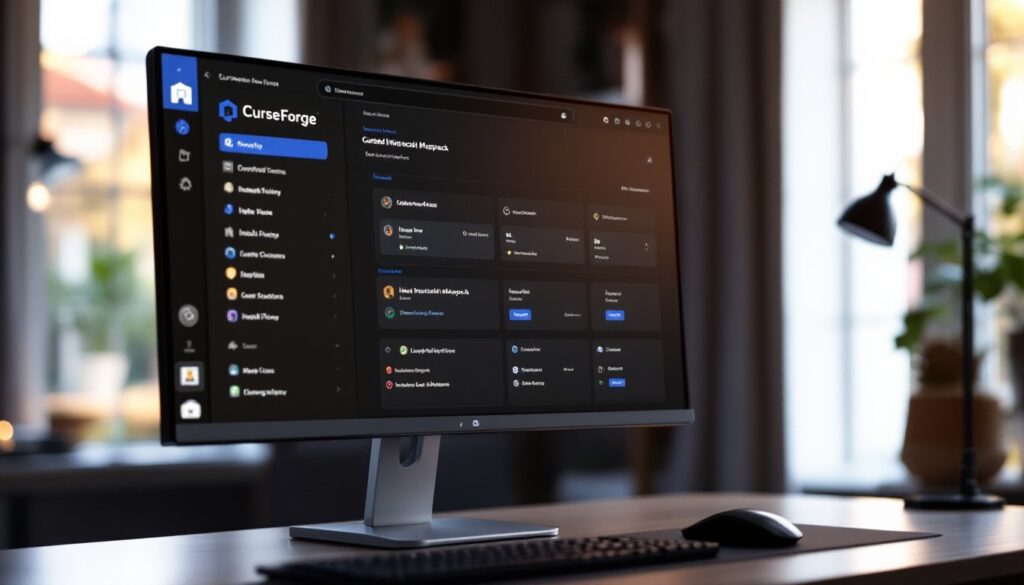
Now add mods. Open your new profile, go to “Content,” and click “Add More Content.” Search for mods you want, CurseForge auto-filters compatible versions. Click “Install” on each. You can also grab resource packs and shaders the same way.
If you find a mod not on CurseForge, no problem. Right-click your profile, pick “Open Folder,” and drop the .jar file into the mods folder manually. Just make sure it matches your loader and version.
Prefer modpacks? Search for popular ones like “All the Mods” or “Valhelsia,” click one, and hit “Install.” CurseForge bundles all the mods and settings automatically. When you’re ready, hover over your profile and click “Play.” The official launcher opens, you log in, and you’re gaming.
Keep in mind that CurseForge Minecraft mod compatibility depends on exact version matching. A mod built for Forge 1.20.1 won’t load on 1.19.2. Always double-check version numbers before installing, and DSOGaming’s PC gaming guides frequently cover mod-related setup issues if you hit snags.
Setting Up Your CurseForge Account and Auto-Updates
CurseForge syncs with your Overwolf/CurseForge identity. When prompted in the app menu, sign in to unlock cloud sync and other services, this keeps your mod profiles and preferences backed up across devices.
For auto-updates, open Settings (the gear icon), find the “Updates” section, and enable automatic updates. CurseForge will then grab the latest mod versions without you lifting a finger. Alternatively, go to your modpack or game tab, review individual mods, and hit “Update all” manually if you prefer tighter control.
This matters because outdated mods can cause crashes or miss bug fixes. Keeping everything current prevents most stability issues. If a mod update breaks something, you can always downgrade or disable it from the “Content” tab, but CurseForge makes reverting changes painless since it tracks versions.
Check settings periodically, mod developers push updates often, and How-To Geek’s gaming setup guides have detailed walkthroughs if you need visual help configuring less obvious options.
Conclusion
CurseForge is your one-stop shop for modding Minecraft cleanly. Download from the official site, run the installer for your OS, link your Minecraft account, and you’re ready to build modpacks without the friction of manual file management. Always download from Overwolf’s site, match your mod versions carefully, and keep auto-updates enabled. You’ll save hours chasing broken mods and version conflicts, and honestly, that’s time better spent actually playing the game.