Table of Contents
ToggleMinecraft without mods is like pizza without toppings, perfectly fine, but you’re missing out on a world of flavor. If you’ve ever wanted to add new dimensions, automation systems, or even dragons the size of mountains to your game, you’re going to need Forge. This mod loader has been the backbone of Minecraft modding since 2011, and in 2026, it’s still the go-to tool for transforming vanilla Minecraft into whatever you can imagine.
But here’s the thing: downloading and installing Forge isn’t always straightforward. One wrong click can land you on a sketchy download site loaded with adware, or you might end up with a version that crashes your game before you even load a world. This guide walks you through everything, from picking the right Forge version to troubleshooting those annoying crash reports that make you question your life choices. By the end, you’ll have Forge running smoothly and be ready to jump into the modding scene.
Key Takeaways
- Minecraft Forge download from the official files.minecraftforge.net is the only safe way to access the mod loader—avoid third-party sites to prevent malware and adware.
- Select the Recommended Forge version that matches your exact Minecraft version (e.g., Forge for 1.20.4), as incompatible versions will crash your game.
- Ensure you have Java 17 or higher installed for Minecraft 1.17+, and allocate 6-8GB of RAM to Minecraft when using mod packs to prevent performance issues and crashes.
- After Minecraft Forge installation, add mods as .jar files to your mods folder (located at .minecraft/mods) without extraction—Forge handles all loading automatically.
- Check crash reports in .minecraft/crash-reports/ to identify conflicting mods or missing dependencies, then update or remove problem mods to resolve compatibility issues.
- Start with 5-10 essential mods like Just Enough Items (JEI) and Biomes O’ Plenty before expanding, and backup your saves before updating Forge or major Minecraft versions.
What Is Minecraft Forge and Why Do You Need It?
Minecraft Forge is a modding API (Application Programming Interface) and mod loader that acts as a bridge between Minecraft’s base code and the custom mods you want to install. Think of it as the translator that lets mods talk to the game without breaking everything in the process.
Without Forge, most mods simply won’t work. Minecraft’s code wasn’t designed to be easily modified, so modders created Forge to provide a standardized framework. It handles the heavy lifting, loading mods, managing conflicts, and ensuring everything plays nice together.
Understanding Forge’s Role in Minecraft Modding
Forge creates a modding environment by injecting hooks into Minecraft’s code. These hooks let modders add new blocks, items, mobs, mechanics, and entire systems without rewriting the game from scratch. It also provides libraries and tools that make development easier, which is why the majority of Minecraft mods are built for Forge.
When you launch Minecraft with Forge installed, it loads all compatible mods from your mods folder before starting the game. It manages the load order, checks for compatibility issues, and generates crash reports when something goes wrong (and trust me, something will eventually go wrong).
Forge vs. Fabric: Which Mod Loader Should You Choose?
Fabric is Forge’s main competitor, and the choice between them comes down to what you want to mod. Forge has been around longer and supports a massive library of established mods, think big content packs like Biomes O’ Plenty, Tinkers’ Construct, and Applied Energistics 2. It’s the workhorse of the modding community, though it can be slower to update when new Minecraft versions drop.
Fabric, on the other hand, is lighter and updates faster. It’s popular for performance mods (Sodium, Lithium) and newer projects that prioritize clean code over backwards compatibility. If you’re into technical modding or want bleeding-edge performance tweaks, Fabric’s your pick.
For most players diving into modding for the first time, Forge is the safer bet. The mod selection is broader, documentation is extensive, and community support is everywhere. You can always experiment with Fabric later, they’re not mutually exclusive, you just can’t run them simultaneously.
System Requirements for Minecraft Forge
Forge itself doesn’t add much overhead to Minecraft, but the mods you’ll run with it definitely will. Your system needs to handle both vanilla Minecraft and whatever crazy mod pack you’re about to throw at it.
Minimum and Recommended Specifications
Vanilla Minecraft is surprisingly demanding for a game made of blocks, and adding mods multiplies that strain. Here’s what you need:
Minimum specs:
- CPU: Intel Core i3-3210 or AMD A8-7600 APU
- RAM: 8GB (with at least 4GB allocated to Minecraft)
- GPU: Integrated graphics (Intel HD 4000 or better)
- Storage: 1GB free (more for large mod packs)
Recommended specs for modded gameplay:
- CPU: Intel Core i5-4690 or AMD Ryzen 5 1600
- RAM: 16GB (with 6-8GB allocated to Minecraft)
- GPU: NVIDIA GTX 1060 or AMD RX 580
- Storage: SSD with 5GB+ free space
Large mod packs with 100+ mods can easily consume 8GB of RAM or more. If you’re planning to run something like Enigmatica 6, All the Mods, or RLCraft, 16GB of system RAM is basically mandatory.
Java Version Compatibility
Minecraft runs on Java, and Forge needs the right Java version to function. As of 2026, here’s the breakdown:
- Minecraft 1.17 and newer: Requires Java 17 or higher
- Minecraft 1.12.2 to 1.16.5: Works with Java 8, but Java 11 or 16 can improve performance
- Minecraft 1.7.10 and older: Stick with Java 8
Most modern systems come with Java pre-installed, but it’s often an outdated version. Download the latest version of Java from Adoptium (formerly AdoptOpenJDK) or Oracle’s official site. Make sure you grab the 64-bit version, 32-bit Java caps your RAM allocation at 2GB, which will cripple any modded setup.
How to Download Minecraft Forge Safely
This is where things get sketchy if you’re not careful. Fake Forge sites are everywhere, loaded with malware disguised as installers. One Google search can lead you down a rabbit hole of ad-riddled nightmares.
Finding the Official Forge Website
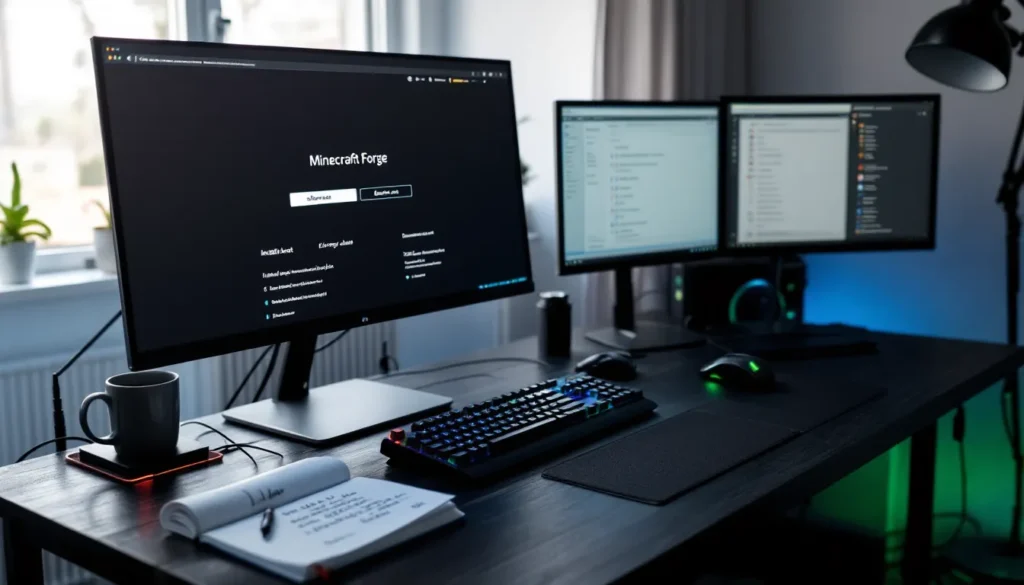
The only legitimate source for Minecraft Forge is files.minecraftforge.net. Bookmark it. Any other site offering Forge downloads is either rehosting (which violates the license) or outright malicious.
When you land on the official site, you’ll see a list of Minecraft versions. The layout is bare-bones and slightly dated, but that’s actually a good sign, it means you’re in the right place. Scam sites tend to look flashier with big “DOWNLOAD NOW” buttons plastered everywhere.
Selecting the Right Forge Version for Your Minecraft Game
Forge versions are tied to specific Minecraft versions. If you’re running Minecraft 1.20.4, you need Forge for 1.20.4. Running the wrong version will either crash on launch or simply refuse to load.
Each Minecraft version has multiple Forge builds:
- Latest: The most recent build with bug fixes and improvements
- Recommended: A stable build that’s been tested extensively
For most players, the Recommended build is the safest choice. Latest builds can have experimental features or undiscovered bugs. If you’re installing mods that specify a Forge version (like “Requires Forge 43.2.0 or higher”), match that requirement exactly.
Avoiding Fake Download Sites and Malware
Here’s how to spot fake Forge sites:
- Check the URL: If it’s not files.minecraftforge.net, bail immediately.
- Watch for redirect chains: Official Forge uses adfoc.us for download links (it’s how they fund the project). You’ll see one ad page, then the download starts. If you’re clicking through multiple redirects or pop-ups, something’s wrong.
- No account required: You never need to create an account or enter personal info to download Forge.
- File size check: Forge installers are typically 5-10MB. If your download is 50MB+, it’s bundled with junk.
When you click the installer link on the official site, you’ll hit an adfoc.us page. Wait 5 seconds, click “Skip” in the top-right corner, and the download begins. Don’t click any ads on that page, some are designed to look like download buttons. The gaming community has embraced mods as essential tools for extending game longevity, making legitimate downloads critical.
Step-by-Step Installation Guide for Windows
Windows is the most common platform for modded Minecraft, and the installation process is straightforward once you know the steps.
Running the Forge Installer
- Locate your downloaded Forge installer (it’ll be named something like forge-1.20.4-49.0.3-installer.jar).
- Double-click the .jar file to run it. If nothing happens, you don’t have Java installed or your system doesn’t recognize .jar files.
- Right-click the file → Open with → Java(TM) Platform SE Binary
- If Java isn’t in the list, install it first (see System Requirements section)
- Select “Install client” in the Forge installer window. The default installation path points to your Minecraft directory (usually
C:Users[YourName]AppDataRoaming.minecraft). Leave it as-is unless you have a custom setup. - Click OK and wait for the installation to complete. It takes 10-30 seconds.
- Close the installer when you see “Successfully installed client profile forge for version…”.
The installer creates a new game profile in your Minecraft Launcher and adds the necessary Forge files to your Minecraft directory.
Configuring the Minecraft Launcher
- Open the Minecraft Launcher (the official launcher from Mojang, not a third-party launcher).
- Click the dropdown menu next to the green Play button at the bottom.
- Select the Forge profile (it’ll be labeled something like “forge-1.20.4”).
- Click Play and let Minecraft load.
The first launch takes longer than usual, Forge is setting up its environment and creating necessary folders. You’ll know it worked when you see “Mods” in the main menu alongside Singleplayer, Multiplayer, and Options.
If you want to allocate more RAM (which you absolutely should), click “Installations” at the top of the launcher, hover over your Forge profile, click the three dots, then “Edit”. Under “More Options”, find the JVM Arguments box. Change -Xmx2G to -Xmx6G (or but much RAM you want to allocate). Don’t exceed 80% of your total system RAM.
Installing Minecraft Forge on Mac
Mac installation is nearly identical to Windows, with a few OS-specific quirks.
Mac-Specific Installation Steps
- Download the Forge installer from files.minecraftforge.net (same as Windows).
- Double-click the .jar file to run it. macOS might block it with a security warning.
- If it won’t open, go to System Preferences → Security & Privacy → General
- You’ll see “[filename] was blocked from opening” with an “Open Anyway” button
- Click “Open Anyway” and confirm
- Follow the same installer steps as Windows: select “Install client”, verify the path, click OK.
- Open the Minecraft Launcher and select the Forge profile from the dropdown.
- Launch the game and verify “Mods” appears in the main menu.
macOS stores Minecraft in ~/Library/Application Support/minecraft/. To access it quickly, open Finder, click “Go” in the menu bar, hold Option, and select “Library”. Navigate to Application Support → minecraft.
Troubleshooting Common Mac Issues
“Cannot open .jar file” error: This means Java isn’t installed or isn’t set as the default handler for .jar files.
- Install Java from Adoptium or Oracle
- Right-click the Forge installer → Get Info → Open with → Jar Launcher (or Java)
Forge profile doesn’t appear in launcher: Restart the Minecraft Launcher completely (Cmd+Q to quit, then reopen). Sometimes the launcher needs a full restart to detect new profiles.
Crashes on launch with M1/M2 Macs: Make sure you’re running the ARM64 version of Java, not the x86 version. Rosetta translation works but can cause stability issues with modded Minecraft. Many Mac gaming setup guides emphasize the importance of native ARM architecture for performance.
Installing Forge on Linux Systems
Linux installation requires command-line comfort, but it’s arguably cleaner than Windows once you know the process.
- Install Java if you haven’t already. Use your package manager:
- Ubuntu/Debian:
sudo apt install openjdk-17-jre openjdk-17-jdk - Fedora:
sudo dnf install java-17-openjdk java-17-openjdk-devel - Arch:
sudo pacman -S jre-openjdk jdk-openjdk
- Download the Forge installer from files.minecraftforge.net.
- Open a terminal and navigate to your Downloads folder:
cd ~/Downloads - Run the installer:
java -jar forge-[version]-installer.jar
- The GUI installer should appear. If not, add
--installClientas a flag.
- Select “Install client”, verify the path (usually
~/.minecraft), and click OK. - Launch the Minecraft Launcher (if you don’t have it, install it from minecraft.net or your distro’s repo).
- Select the Forge profile and launch.
Permission issues? Make sure the .jar file is executable: chmod +x forge-[version]-installer.jar
No GUI appearing? Some minimal Linux installs lack the required Java GUI libraries. Install them:
- Ubuntu/Debian:
sudo apt install libxrender1 libxtst6 libxi6 - Fedora:
sudo dnf install libXrender libXtst libXi
Linux gives you more control over Java versions using alternatives. If you have multiple Java versions installed, switch with sudo update-alternatives --config java.
How to Install and Manage Mods with Forge
Forge is installed, the launcher works, and you’ve seen that beautiful “Mods” button in the main menu. Now for the fun part: actually adding mods.
Locating Your Minecraft Mods Folder
Forge creates a mods folder inside your Minecraft directory the first time you launch it. Here’s where to find it:
Windows: C:Users[YourName]AppDataRoaming.minecraftmods
- Quick access: Press Win+R, type
%appdata%.minecraftmods, hit Enter
Mac: ~/Library/Application Support/minecraft/mods
- Quick access: Finder → Go → Go to Folder → type
~/Library/Application Support/minecraft/mods
Linux: ~/.minecraft/mods
- Quick access: Open your file manager and show hidden files (Ctrl+H), navigate to .minecraft/mods
If the mods folder doesn’t exist, create it manually or launch Forge once to generate it automatically.
Adding Mods to Your Forge Installation
Mods come as .jar files (sometimes .zip, but .jar is standard). Here’s the process:
- Download mods from trusted sources like CurseForge, Modrinth, or the mod developer’s official page. Sites like Nexus Mods host some Minecraft content, though CurseForge dominates this space.
- Check compatibility: Make sure the mod version matches your Minecraft and Forge versions. A mod for 1.19.2 won’t work on 1.20.4.
- Drop the .jar file into your mods folder. No installation, no extraction, just copy the file.
- Launch Minecraft with Forge and click “Mods” in the main menu to verify it loaded.
That’s it. No config files to edit, no manual code changes. Forge handles everything.
Managing Mod Compatibility and Load Order
Mod conflicts happen when two mods try to modify the same game element or rely on incompatible dependencies. Forge does its best to manage this, but you’ll eventually hit issues.
Check dependencies: Many mods require libraries like Forge Config API Port, Cloth Config, or GeckoLib. The mod page will list these. Download and install them the same way.
Read crash reports: When mods conflict, Forge generates a crash log in .minecraft/crash-reports/. The log usually identifies the problem mod. Remove or update it, then try again.
Load order: Forge handles load order automatically based on mod dependencies. You rarely need to intervene manually. If two mods conflict, it’s usually a compatibility issue, not a load order problem.
Mod packs: If you’re installing 50+ mods, consider using a launcher like CurseForge App or Prism Launcher. They manage dependencies, updates, and profiles way better than doing it manually.
Troubleshooting Common Forge Download and Installation Problems
Modding Minecraft means you’ll eventually stare at a crash log wondering what you did to deserve this. Here’s how to fix the most common issues.
Fixing Crash Reports and Error Messages
Crash logs are intimidating, hundreds of lines of code and stack traces. But they’re also your best diagnostic tool.
Where to find crash logs: .minecraft/crash-reports/ or .minecraft/logs/latest.log
What to look for:
- “Caused by” lines: These usually identify the problem mod or missing dependency
- “java.lang.NoSuchMethodError”: Version mismatch between mod and Forge
- “java.lang.ClassNotFoundException”: Missing dependency or corrupted mod file
Common fixes:
- Update or remove the problem mod: If a mod is listed in the crash log, try downloading a newer version or removing it entirely.
- Check for missing dependencies: Many mods require libraries like JEI, Bookshelf, or Patchouli. Install them.
- Remove mods one at a time: If you can’t identify the culprit, remove half your mods, test, and narrow down the problem through elimination.
Exit Code 1: This generic error usually means Forge couldn’t initialize. Check that your Java version matches your Minecraft version.
Resolving Java-Related Issues
Java is the foundation of Minecraft, and Forge inherits all its quirks.
“Java is not recognized as an internal or external command”: Java isn’t in your system PATH.
- Windows: Download Java from Oracle or Adoptium and reinstall, making sure “Add to PATH” is checked
- Mac/Linux: Install Java via package manager (see Linux section)
“Could not reserve enough space for object heap”: You’re trying to allocate more RAM than Java can access (common with 32-bit Java or systems with < 8GB RAM).
- Install 64-bit Java
- Lower your RAM allocation in the launcher’s JVM arguments
OutOfMemoryError crashes: Increase RAM allocation. Edit your Forge profile in the launcher and bump -Xmx from 4G to 6G or 8G.
What to Do When Forge Won’t Launch
If Forge refuses to start, work through this checklist:
- Verify Java is installed: Open command prompt/terminal and type
java -version. You should see version info. - Reinstall Forge: Delete the Forge profile in your launcher and run the installer again.
- Check for conflicting launchers: Third-party launchers like MultiMC or ATLauncher have their own Forge management. Don’t mix official launcher profiles with third-party ones.
- Delete
configandmodsfolders temporarily: Move them to your desktop, launch Forge vanilla, then add mods back one at a time to isolate the issue. - Reinstall Minecraft: Backup your saves and worlds, then delete
.minecraftand reinstall from the launcher. This is the nuclear option but fixes corrupted installations.
Still stuck? Copy your crash log and search for it on the CurseForge forums or r/feedthebeast. Someone’s probably hit the same issue.
Best Mods to Try After Installing Forge
You’ve got Forge running. Now what? Here are some essential mods to kickstart your modded journey, organized by category.
Quality of Life:
- Just Enough Items (JEI): Recipe viewer and crafting helper. Non-negotiable.
- JourneyMap: Minimap and world mapping tool with waypoints.
- Waystones: Teleportation network using craftable waystone blocks.
- Inventory Tweaks Renewed: Sorting and restocking for your inventory.
Performance Boosters:
- Optifine (or Rubidium for newer versions): FPS boosts, shader support, and visual tweaks.
- AI Improvements: Makes mob AI less performance-heavy.
- Clumps: Merges XP orbs to reduce lag.
Content Expansion:
- Biomes O’ Plenty: 80+ new biomes with unique blocks and generation.
- Mekanism: Industrial-scale tech mod with power generation, ore processing, and automation.
- Tinkers’ Construct: Modular tool crafting and customization.
- Ice and Fire: Dragons, mythical creatures, and fantasy dungeons.
Exploration & Adventure:
- The Twilight Forest: Entire new dimension with dungeons, bosses, and progression.
- Alex’s Mobs: 70+ new creatures that integrate seamlessly into vanilla biomes.
- YUNG’s Better Dungeons/Mineshafts/Strongholds: Overhauls vanilla structures with way more detail.
Tech & Automation:
- Applied Energistics 2: Digital storage and autocrafting networks.
- Thermal Expansion: Machines, power, and resource processing.
- Create: Mechanical engineering with gears, belts, and contraptions. Amazing for engineering projects in Minecraft.
Magic:
- Botania: Nature-themed magic using mana and flowers.
- Ars Nouveau: Spellcrafting and magic automation.
- Mana and Artifice: Ritual magic and progression-based spellcasting.
Start with 5-10 mods max. Get comfortable, then expand. Trying to run 100+ mods on your first attempt is a fast track to analysis paralysis and crashes. For curated selections, check out comprehensive mod collections and recommendations.
Keeping Minecraft Forge Updated
Minecraft updates regularly, and Forge has to update with it. Mods then need to update to match the new Forge version. It’s a cascade of dependencies that can break your setup if you’re not careful.
When to update Forge:
- When you want to play a newer Minecraft version
- When a critical bug fix is released for your current version
- When a mod you want requires a newer Forge build
When NOT to update:
- In the middle of a playthrough with a stable mod setup
- Within the first week of a major Minecraft update (let Forge stabilize)
- When your essential mods haven’t updated yet
How to update:
- Backup your world saves: Copy
.minecraft/saves/to a safe location. - Download the new Forge version from files.minecraftforge.net.
- Run the installer and select “Install client” (same as initial installation).
- Launch with the new Forge profile and test in a new world before loading your main save.
- Update your mods: Download updated versions for the new Forge/Minecraft version. Old mods won’t work.
Mod compatibility: Not all mods update at the same pace. Popular mods like JEI and Waystones usually update within days, but niche or abandoned mods can take months, or never update at all. Check the mod page before updating Forge.
Multiple Forge versions: You can have multiple Forge profiles for different Minecraft versions. The launcher lets you switch between them. Many players maintain one stable long-term modded setup (like 1.19.2) while experimenting with newer versions separately.
Conclusion
Installing Minecraft Forge unlocks an entirely new dimension of gameplay, one where you’re limited only by your imagination and your PC’s RAM. From automation empires to magic-infused adventures, the modding community has built thousands of ways to transform Minecraft into something uniquely yours.
The setup process has some friction points, Java versions, crash logs, and the occasional malware-laden fake download site, but once you’ve got Forge running smoothly, the payoff is massive. Start small, experiment with different mod combinations, and don’t be afraid to break things. That’s half the fun.
Now go build something ridiculous.